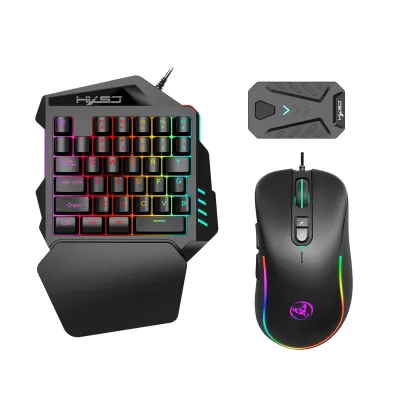
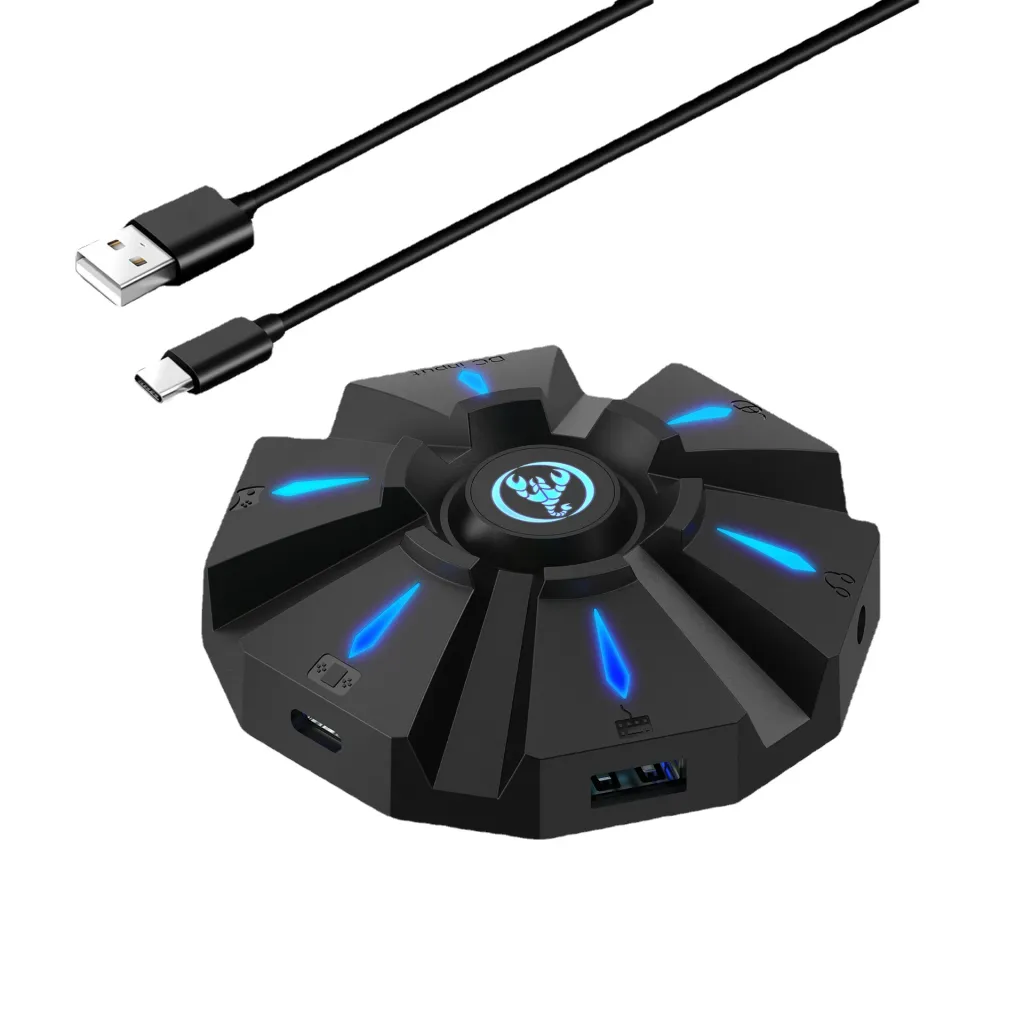
Specification: Item name: Keyboard mouse converter Brand/Model: HXSJ/P9 Color: Black Material: ABS Product interface:TYPE-C charging interface Rated voltage / current: DC 5V / 100mA Suitable game consoles: PS4, Xbox One, PS3, Xbox 360, N-Switch
PRODUCT CONNECTION INSTRUCTIONS: Start the console and connect the adapter via an USB TYPE-C data cable ( USB port plug to the console, TYPE-C port plug to the converter) then LED white light.Plug the original wired controller to guide the yellow LED light.Insert the keyboard then LED red light ;insert the mouse then LED green light.After all connected,the LED will breathe in circulation from yellow,cyan,purple and pink.
SETTING INSTRUCTIONS: 1、Set Keyboard And Mouse Functions ■Press the keyboard ESC + SPACE (space bar) at the same time to enter the function mode of setting the keyboard and mouse buttons (LED blue light) ■Press and hold the function button you want to set on the original controller, then press the button on the keyboard or mouse you want to set, and release the button on the original controller and the button on the keyboard or mouse. ■After the setting is completed, press ESC + SPACE on the keyboard to save the current setting and exit the setting mode. ■For example: press ESC + SPACE (space bar) to enter the setting mode, press and hold the original SWITCH controller A key, and then press the keyboard F key to release the original SWITCH controller A key. The function of the controller A key. 2、Note On Keyboard And Mouse Setting Functions: ■During the setting process, if you do not hold down the original controller function key or joystick to the end, the original set function of the keyboard or mouse will be cleared ■When setting the functions of the original joystick left and right to the keyboard, the direction of the joystick must be pushed to the end, and only the four directions of the joystick up, down, left, and right can be set. ■For the setting of the mouse, when the original joystick direction must be pushed to the end, the mouse slides in the corresponding direction, and the mouse only supports the corresponding function of the left and right joystick directions. ■Original controller cross key supports 8 directions setting
5、Function Switching Instructions: ■Enter setting mode: ESC + SPACE ■Default page 1: SC+ CTRL + Q ■Exit setting mode: ESC + SPACE ■Mouse speed switch: ESC + CAPSLOCK+A/ S/D/ F / G ■Y axis plus reverse: ESC + R ■Page area selection: ESC+ TAB+Q /W/ E/ R/ T ■Key value restore default: SC + CTRL + ALT (long press for 3 seconds) 6、Upgrade Instructions: (you cannot upgrade at will without the correct upgrade program) ■On a Windows computer, open the upgrade software. When the converter does not enter the upgrade mode, "Update rm ware" is light gray. ■Connect the converter to the computer through the USB data cable. At this time, the converter's white LED is on, plug in the keyboard and the red LED is on. Press the keyboard SC+ CTRL + ALT + SPACE and hold it for 3s. At this time, the "Update rm ware "Is black, click the button"Update rm ware "to update the converter rm ware. ■The OK window pops up and displays "Update Success", indicating that the upgrade is complete. Click OK.